Coming a few weeks before the BlackBerry World Conference to be held in Orlando, Florida, USA, 3-5 May 2011, the BlackBerry Playbook finally officially circulated. Tablets made by Research In Motion's first began to be enjoyed by Canadian consumers, on Tuesday (04/19/2011).
According to analysts quoted by the Wall Street Journal sites, Research In Motion (RIM) is expected to distribute 2 million to 4 million BlackBerry Playbook during the year 2011. However, analyst firm Gartner predicted that tablet will not generate sales, both compared with the iPad or tablet-based Android.
A recent report released by Gartner, 11 April 2011 shows, in 2015, Apple's IOS platform will still dominate the tablet market with 47.1 percent, 38.6 percent of Android, and QNX (RIM) 10 percent. The rest of the web OS 3 percent, MeeGo 1 percent, and others 0.2 percent.
image from yuwienetwork.blogspot.com
According to Carolina Milanesi, Gartner Research VP, takes time and effort even harder for RIM to attract developers and provide ecosystem of applications and services that are appropriate for QNX to be competing with the IOS and Android.
According to him, the biggest market for these tablets is the enterprise customers who are already using the BlackBerry solution for information technology services.
BlackBerry Playbook indeed been heralded comes with advanced features for professional users. Tablets are also claimed the most support current web content, including full support Flash. BlackBerry Playbook can also function as a partner for the BlackBerry because of its tethering feature can display e-mail, calendar, and other information available on the BlackBerry smartphone user.
The price offered by RIM for BlackBerry Playbook tablet is the same price as its competitors. Currently only available WiFi model only with the price of 499 U.S. dollar for a model with a capacity of 16 GB of memory, 599 U.S. dollars for 32 GB, and 699 U.S. dollars for a model with a capacity of 64 GB of memory.
Ya, bulan April biasa kita kenal april mop/april fool, dimana semua orang ngeselin semua dan melakukan trik tipuan dengan segala cara baik dari sms, telepon, sampe broadcast blackberry messenger.Barusan dapat BM "Lucu-lucu tampilannya tekan menu bb (2x) pada home screen lalu tekan alt+THMN. Indahnya berbagi!". Awalnya gw ga ketipu karena gw pake OS 6 pas tekan menu bb (2x) pada homescreen itu open tray bukan untuk akses menu theme. Gara2 kepo gw coba di bb ade gw OS 5.. Jreng! themenya jadi hitam putih dan icon berubah menjadi kecil (kena jebakan betmen sob). Maka dari itu kita harus ya minimal tau lah fungsi hidden menu/keyboard shorcut pada handheld anda :). Untuk mengembalikan ke theme semula:
Cara 1:
Tekan menu BB->Pilih Options->Tekan Menu BB->Theme Option->Pilih theme dan activated
Cara 2:
Tekan menu BB->Alt+THMD
Keyboard shortcut blackberry (Hidden Menu):
Theme (from theme menu)
Alt+THMN - Merubah theme black and white (No theme)
Alt+THMD - Merubah theme default
Status (Menu Options->Status) Tanpa ALT
BUYR – Data & Voice Usage TEST – start a device test (Keyboard, GPS, RF, Audio (Handset,headset,bluetooth, Misc)
Browser
ALT+RBVS – View web page source code
Options Menu (Tanpa ALT)
RSET – Will prompt to erase & reload for a reload of the Address book from the BES (n.b. this will wipe all entries, but you can goto SIM Phone Book & copy entries back afterwards)
SYNC – Enable Calendar slow sync
RSET – Will prompt for a reload of the calendar from the BES
RCFG – Request BES configuration
SCFG – Send device configuration
DCFG – Get CICAL configuration
SUPD – Enable detailed Cal. report for backup
SUPS – Disable detailed Cal. report for backup
SUPN – Disable Cal. report database
LUID – Enable view by UID
SRSL – Show Reminder status log
Home Screen
ALT(left)+Shift(right)+Del – Restart the Blackberry (only for full-keyboard Blackberries)
ALT+JKVV – Display cause of PDP reject
ALT+CAP+ H – Displays the Help Me screen
ALT + EACE – Displays the Help Me screen
ALT + ESCR – Displays the Help Me screen
ALT + NMLL – Switches the signal strength from bars to a numeric value.
ALT + LGLG – Displays the Java™ event log.
SIM Card (Menu Options->Advanced->SIM Card) Tanpa ALT
MEPD – Display MEP info
MEP1 – Disable SIM personalization
MEP2 – Disable Network personalization
MEP3 – Disable Network subset personalization
MEP4 – Disable Service provider personalization
MEP5 – Disable Corporate personalization
Date/Time (Date/Time menu –Tanpa ALT)
LOLO – Date/Time Show Network time values
Enterprise Activation (Menu Options->Advanced)
ALT+CNFG – Settings for Enterprise Activation
Address Book
ALT+VALD – Validate the data structure and look for inconsistencies
ALT+RBLD – Force a data structure rebuild
Messaging
ALT+VIEW – For messages, displays the RefId and FolderId for that particular message. For PIM items, displays only the RefId.
Search Application
ALT+ADVM Search Application Enabled Advanced Global Search
WLAN (Wireless LAN Wizard)
ALT-SMON WLAN – Enable simulated Wizard mode
ALT-SMOF WLAN – Disable simulated Wizard mode
Shortcut Dasar Shortcut-shortcut berikut ini bisa digunakan dalam beragam aplikasi:
Untuk memindahkan kursor, cukup gerakkan trackball.
Untuk keluar dari layar atau pindah ke halaman sebelumnya saat anda sedang browsing, tekan tombol Escape.
Untuk menuju ke list menu atau item yang anda inginkan, cukup ketik huruf pertama dari item yang hendak anda tuju.
Untuk memilih atau menghapus check box, klik tombol Space.
Untuk melihat karakter-karakter huruf, tekan tombol Alt.
Untuk mengganti aplikasi, tahan tombol Alt dan kemudian tekan Escape. Tetap tahan tombol Alt dan pilih aplikasi yang anda inginkan. Lepaskan tombol Alt.
Untuk kembali pada Halaman Muka (Home), tekan End.
Untuk menghapus item-item yang telah anda highlight, tekan tombol Backspace/Delete.
Untuk mengubah theme (motif) atau notification profile anda, pilihlah theme atau notification profile yang anda inginkan, dan kemudian tekan Space.
Shortcut untuk Telepon Shortcut-shortcut berikut ini bisa digunakan saat anda mengakses aplikasi Telepon (Phone) ataau saat anda menjawab panggilan:
Untuk menjawab panggilan telepon, tekan tombol Send.
Untuk melihat contact list, tahan tombol Send.
Untuk memasukkan tanda tambah (+) saat anda mengetikkan nomor telepon tertentu, tahan angka 0.
Untuk menambahkan nomor extension pada nomor telepon, tekan Alt dan kemudian tekan huruf X, lalu ketikkan nomor extension yang anda kehendaki.
Untuk menambahkan nomor speed dial yang bisa dihubungi hanya dengan menekan sebuah tombol, dari Halaman Muka (Home) di aplikasi Telepon, tahan tombol yang anda inginkan. Ketikkan nomor telepon yang anda inginkan.
Untuk mengaktifkan speakerphone di tengah perbincangan telepon, tekan tombol Speakerphone.
Untuk mematikan speakerphone di tengah perbincangan telepon, tekan tombol Speakerphone.
Untuk mengecek voice mail, tahan angka1.
Untuk mengetik huruf di phone number field, tekan Alt dan kemudian hurufnya.
Untuk kembali ke bagian atas Phone screen, tekan Space.
Untuk melihat kembali nomor telepon yang terakhir anda ketikkan, tekan Space dan kemudian Enter. Tekan tombol Send jika ingin menghubungi nomor itu.
Shortcut untuk Message Shortcut-shortcut berikut ini bisa digunakan dalam aplikasi message:
Untuk membalas sebuah message, tekan R
Untuk membalas ke seluruh orang, tekan L
Untuk memforward message, tekan F
Untuk menyimpan email yang telah dihiglight, tekan I.
Untuk melihat alamat email seorang contact, di dalam sebuah message, highlight contact tersebut. Tekan Q.
Untuk menampilkan nama contact kembali, tekan Q.
Shortcut-shortcut berikut ini bisa digunakan dalam message list:
Untuk membuka message yang telah dihighlight, tekan Enter.
Untuk mengcompose (menulis) pesan baru dari message list, tekan C.
Untuk menandai message sebagai sudah dibuka (opened) atau belum dibuka (unopened), tekan Alt dan U.
Untuk melihat received message (pesan masuk), tekan Alt dan I.
Untuk melihat sent message (pesan keluar), tekan Alt dan V.
Untuk melihat pesan SMS, tekan Alt dan S.
Untuk melihat call logs, tekan Alt dan P.
Untuk melihat message anda kembali, tekan Escape.
Shorcut-shortcut berikut bisa digunakan dalam message list:
Untuk pindah ke layar atas, tekan Shift dan Space.
Untuk pindah ke layar bawah, tekan Space.
Untuk pindah ke daftar teratas message list, tekan T.
Untuk pindah ke daftar terbawah message list, tekan B.
Untuk pindah ke tanggal berikutnya, tekan N.
Untuk pindah ke tanggal sebelumnya, tekan P.
Untuk pindah ke item berikutnya yang unopened, tekan U.
Untuk pindah ke message berikutnya yang berkaitan, tekan J.
Untuk pindah ke message sebelumnya yang berkaitan, tekan K.
Mengetikkan Shortcut Shortcut-shortcut berikut bisa digunakan saat mengetik teks dalam sebuah aplikasi:
Untuk membubuhkan titik, tekan Space dua kali. Huruf berikutnya menjadi huruf kapital.
Untuk membuat huruf kapital, tahan huruf yang anda inginkan hingga huruf kapital tertampil di layar.
Untuk mengetikkan karakter alternatif, tekan Alt dan tekan karakter yang anda inginkan.
Untuk mengetikkan karakter beraksentuasi atau karakter khusus, tahan huruf yang anda inginkan dan gerakkan trackball ke kiri atau ke kanan. Sebagai contoh untuk mengetikkan ü, tahan huruf U dan gerakkan trackball ke sebelah kiri hingga karakter ü muncul di layar. Lepaskan huruf yang anda tahan begitu karakter beraksentuasi atau karakter spesial itu tertampil di layar.
Saat mengetikkan angka di number field, cukup tekan angka yang anda inginkan. Tak usah menekan tombol Alt.
Saat mengetikkan angka di password field, tahan Alt dan tekan angka yang anda kehendaki.
Untuk mengaktifkan NUM lock, tekan tombol Alt dan Left Shift.
Untuk mengaktifkan CAP lock, tekan tombol Alt dan Right Shift.
Untuk mematikan NUM lock atau CAP lock, tekan tombol Shift.
Untuk mengganti bahasa, pada bagian Languange, pastikan bahwa Use Input Languange Shortcut field diisi dengan Yes. Tahan Alt dan tekan Enter. Terus tahan Alt dan higlight bahasa yang anda inginkan. Lepaskan tombol Alt.
Shorcut-shortcut berikut bisa digunakan untuk memasukkan simbol-simbol:
Untuk memasukkan lambang at (@) atau titik (.) ke dalam field alamat email, tekan Space.
Untuk mengetikkan simbol, tekan tombol Simbol. Ketikkan huruf yang berada di bawah simbol.
Shortcut-shortcut berikut ini berguna saat anda menulis teks:
Untuk menghighlight sebaris teks, tekan Shift dan gerakkan trackball.
Untuk menghighlight teks karakter per karakter, tahan Shift dan gerakkan trackball ke kiri atau ke kanan.
Untuk membatalkan pemilihan teks, tekan Escape.
Untuk memotong teks yang telah dihighlight saat mengetik, tekan Shift dan Backspace/Delete.
Untuk mengkopi teks yang telah dihighlight saat sedang mengetik, tekan Alt dan klik trackball.
Untuk menempel teks yang telah dihighlight, tekan Shift dan klik trackball.
Shortcut untuk Pencarian Shortcut-shortcut berikut bisa digunakan saat pencarian dalam sebuah aplikasi tertentu:
Untuk mencari seorang contact atau list contacts, ketikkan nama contact atau initial dengan dipisahkan dengan space.
Untuk mencari teks di dalam sebuah message atau memo, tekan S.
Untuk mencari teks di dalam attachment atau web page, tekan F.
Untuk mencari teks di dalam presentation attachment, coba cek terlebih dahulu apakah anda melihat presentation dalam mode text view atau text and slide view. Tekan F.
Shortcut untuk Attachment Shortcut-shortcut berikut bisa digunakan saat melihat attachment:
Untuk mencari teks di dalam attachment, tekan F.
Untuk pindah ke posisi kursor terakhir setelah menutup atau membuka kembali sebuah attachment, tekan G.
Shortcut-shortcut berikut bisa digunakan dalam spreadsheet:
Untuk pindah ke cell tertentu, tekan G.
Untuk melihat isi cell, tekan Space.
Untuk mengganti Worksheet, tekan V. Highlight sebuah worksheet. Tekan Enter.
Untuk melihat kolom atau baris tersembunyi, tekan H.
Untuk menyembunyikan kolom dan baris lagi, tekan H.
Shortcut-shortcut berikut bisa digunakan saat presentasi:
Untuk mengubah presentation views, tekan M.
Untuk pindah ke slide berikutnya, tekan N.
Untuk pindah ke slide sebelumnya, tekan P.
Untuk pindah ke posisi kursor terakhir setelah menutup atau membuka sebuah presentation attachment, coba cek terlebih dahulu apakah anda melihat presentation dalam mode text view atau text and slide view. Tekan G.
Shortcut untuk Browsing Shortcut-shortcut berikut bisa digunakan dalam aplikasi browsing:
Untuk memasukkan sebuah titik (.) ke dalam kotak dialog Go To, tekan Space.
Untuk memasukkan garis miring (/) ke dalam kotak dialog Go To, tekan Shift dan Space.
Untuk membuka browser option, di dalam browser, tekan O.
Untuk menghentikan meloading sebuah web page, tekan Escape.
Untuk menyembunyikan browser, tekan D.
Untuk menutup browser, tahan Escape.
Shortcut-shortcut berikut ini bisa digunakan dalam web page:
Untuk pindah ke suatu web page tertentu, tekan G.
Untuk kembali ke home page, tekan H.
Untuk membuka bookmark list, tekan K.
Untuk menambahkan bookmark, tekan A.
Untuk melihat daftar web page yang baru-baru ini anda kunjungi, tekan I.
Untuk merefresh sebuah web page, tekan R.
Untuk melihat alamat sebuah link, highlight sebuah link.Tekan L.
Untuk melihat alamat sebuah web page, tekan P.
Untuk menyimpan sebuah web page ke dalam message list, tekan S.
Untuk mengikuti link yang sudah dihighlight, tekan Enter.
Untuk menyembunyikan banner, tekan U.
Untuk melihat banner lagi, tekan U.
Untuk melihat web page dalam versi thumbnail, tekan X. Untuk kembali pada keadaan normat, tekan tombol apa saja.
Shortcut-shortcut berikut bisa digunakan saat berselancar di antara beberapa web page:
Untuk pindah ke halaman web page berikutnya, tekan Shift dan Space.
Untuk pindah ke halaman web page sebelumnya, tekan Space.
Untuk pindah ke bagian atas web page, tekan T.
Untuk pindah ke bagian bawah web page, tekan B.
Shortcut untuk Media Shortcut-shortcut berikut bisa digunakan dalam aplikasi Media:
Untuk mempause video atau lagu, tekan tombol Mute.
Untuk melanjutkan video atau lagu, tekan Mute sekali lagi.
Untuk memutar gambar, tekan R.
Untuk meperbesar gambar, tekan I.
Untuk memperkecil gambar, tekan O.
Untuk mengembalikan gambar ke ukuran semula, tekan W.
Shortcut untuk Peta (Map) Shortcut-shortcut berikut bisa digunakan dalam aplikasi Peta:
Untuk memperbesar peta, tekan I.
Untuk memperkecil peta, tekan O.
Untuk melihat status informasi di bagian atas peta, tekan U. Untuk menyembunyikan status informasi di bagian atas peta, tekan U sekali lagi.
Untuk mengganti cara pandang, tekan Space.
Shortcut untuk Kalender Shortcut-shortcut berikut ini bisa digunakan dalam Calendar Day view: Catatan: Untuk mengaktifkan shortcut di dalam Day view, di dalam Calendar Option, ubah Enable Quick Entry field menjadi No.
Untuk menjadwalkan appointment, tekan C.
Untuk pindah ke Agenda view, tekan A.
Untuk pindah ke Day View, tekan D.
Untuk pindah ke Week view, tekan W.
Untuk pindah ke Month view, tekan M.
Untuk pindah ke hari, minggu, atau bulan berikutnya, tekan Space.
Untuk pindah ke hari, minggu, atau bulan sebelumnya, tekan Shift dan Space.
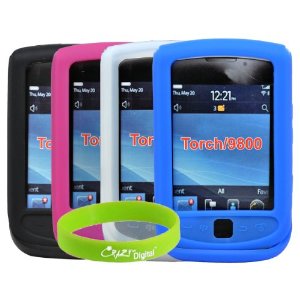
Blackberry Accessories - Do you fear your Blackberry scratches or dents? All people may feel worried, but do not go overboard. We have the latest products. Some accessories from Crazyondigital, can fully protect your Blackberry. You'll get all the major protective items more for your cell phone. You will get a Black Leather Case + 4 Stylish high quality. Sillicon leather case + 2 Crystal Clear screen protector + usb data cable + Compact retractable USB Car Charger + USB Home Wall Charger + 2 Stereo Headphone Splitter + Y + Auxiliary Cable + Fishbone Headphone rollers. All for a fraction of the retail price but quality goods equal or higher. And as a bonus, Crazyondigital provide free bracelets for your enjoyment.
It is very useful because these accessories are in one package. If you are just trying to get a protector for the Blackberry, I can call you out of luck because with this package is only $ 20 you get a few extra accessories. The quality is very good. I recommend this package to you who has a Blackberry 9800 in particular.
Blackberry Accessories According to some people, this product was amazing. You get so many obvious advantages if you use a leather bag. Silikom problem you do not need think again. They consider all the products from Crazyondigital very nice and they love it, really amazing.
Some Blackberry Accessories products from Crazyondigital are as follows:
And to find out more information or if you wish to have this Blackberry Accessories package I recommend you to visit the link I provide below.
Pernahkah anda mengalami kesulitan dalam mengirim / menerima file via bluetooth pada blackberry anda ? Berikut beberapa tips yang bisa saya berikan mengenai bluetooth connection pada blackberry
1. Untuk mengirim / menerima file via bluetooth pada blackberry sebelumnya anda harus melakukan pairing mode antara blackberry dan HP tujuan
Cara melakukan pairing : Nyalakan bluetooth pada blackberry dan HP , anda akan diminta untuk memasukan code pairing , anda bisa memasukan 1 angka saja untuk code itu dan antara blackberry dan HP itu harus menggunakan code yang sama
2. Untuk menerima file pada blackberry anda , pertama masuk ke program media yang ada di blackberry anda kemudian pilih salah satu dari 4 pilihan yang akan anda terima ( music , ringtone , video & pictures ). Press menu blackberry kemudian pilih receive using bluetooth
Note : Pairing sangat penting dalam proses pengiriman atau menerima file via bluetooth pada blackberry
Tutorial blackberry messenger, cara mudah bermain bbm , tips dan trik mudah main bbm. hehehe kali ini saya menyajikan artikel gadget yang mengulas salah satu fitur blackberry yang membuat orang tak bisa jauh dari blackberry nya kalau sudah utek utek aplikasi blackberry yang satu ini. Apalagi kalo bukan Blackberry Messenger atau istilah kerennya BBM. Silahkan disimak mengenai Tips & Trik Blackberry Messenger berikut ini :
-Contact Management -
1.Buatlah selalu display name anda dengan huruf biasa/standard. Jika ingin huruf/simbol yang aneh2/lucu2 di display name anda jangan letakkan di awal display name. Minimal pasanglah di huruf ketiga. Mengapa?.
Supaya teman anda lebih mudah jika ingin mencari contact anda. Fasilitas search di blackberry hanya bisa mendeteksi huruf standard. Misal anda ingin mencari wiwieng, maka anda cukup ketik huruf w di menu search maka nama yang berawalan huruf standard w akan muncul. Apa yang terjadi jika suatu saat ada teman yang membutuhkan anda dan bbm contact listnya berjumlah ratusan dan display name anda diawali huruf/logo yang aneh/lucu. Pasti akan kesulitan.
2. Manfaatkan fasilitas category di BBM contact list. Dengan cara masuk ke aplikasi bbm -> tekan menu -> pilih new contact category -> isi sesuai keinginan (family/milis/mitra bisnis, dll) -> lalu pilih contact yang akan dipilih sesuai category. Beberapa manfaatnya adalah : jika ingin melakukan BM ke anggota keluarga tentang acara makan malam bersama misalnya. Kita tinggal melakukan broadcast sesuai category keluarga. Pencarian kontak yang jauh lebih mudah karena display contact list lebih terpilah2 lagi.
3. Jika kita memiliki contact list teman yang menggunakan display name yang sering diganti maupun diawali tidak dengan huruf standard. Kita bisa merubah display name contact list teman kita dengan cara pilih contact yang akan kita ubah -> pilih view contact profile -> rubah display name sesuai kehendak kita. Jika kita ingin mengembalikan display name ke kondisi awal lakukan proses yang sama, di sebelah tulisan display name akan muncul tulisan reset, pilih tombol reset. Selesai
4. Backup selalu contact kita secara offline di media card. Secara default setting ini tidak aktif. Tekan menu di bbm, pilih options, cari backup management, pilih backup, pilih backup files locally, tick mark auto save contact list changes, lalu tekan backup now.
-Conversation-
1. Kita bisa melakukan save chat history sampai dengan 2 bulan jika diperlukan. Caranya adalah tekan menu, pilih options, cari bagian chat view, ada menu save chat history, pilih ke media card. Jangan kuatir, tidak akan menguras memory kita karena save dilakukan di media card.
2. Untuk melihat history pilih contact yang akan kita lihat historynya. Setelah layar conversation terbuka pilih menu lalu pilih view chat history.
3. Untuk menonaktifkan save history lakukan point 1 dan pilih never.
4. Untuk lebih efisien disarankan agar conversation kita di bbm tidak usah dimunculkan di folder messages. Caranya pilih options, cari bagian miscellaneous, hilangkan tick mark show chats in messages application
-BB Groups-
Salah satu default setting yang kurang efisien adalah di bb groups fitur save pictures adalah aktif dan tersimpan di media card. Kadang gambar yang tersimpan di media card jadi muncul gambar yang ‘aneh’. Hehehe… jika kita merasa terganggu kita bisa menonaktifkan fitur ini dengan cara masuk ke group yang akan kita edit, pilih view group details, dan pilih save pictures menjadi never. Disini sekaligus jika kita tidak menginginkan conversation group muncul di folder messages dengan cara pilih message list integration, pilih setting, pilih no activities.
-Broadcast Message-
Kalo bagian ini rasanya tidak perlu dijelaskan karena rasanya sudah banyak yang tahu. Hehehe…. Mungkin beberapa hal yang perlu diperhatikan :
1. Hindarilah melakukan broadcast yang tidak jelas asal usulnya/sumber yang dapat dipercaya dan dipertanggungjawabkan.
2. Broadcast jokes/humor sebaiknya juga dihindari.
3. Semua setting dan performance bbm ditentukan dari kekuatan signal operator dan aplikasi bbm itu sendiri. Tidak ada setting yang dilakukan dengan cara melakukan broadcast message.
4. Waspadai broadcast spam / junk. Yaitu broadcast yang menyuruh kita untuk melakukan broadcast lagi. Dengan pokok bahasan apapun dengan sumber yang tidak diketahui asal usulnya. Pilah dan pastikan broadcast itu memang benar asal usulnya dan dapat dipertanggungjawabkan. Lihat kata2 saya di awal, waspadai, bukan hindari.
5. Memang semua adalah hak masing2 untuk melakukan broadcast. Tapi jangan salahkan jika teman kita melakukan delete contact kita di contact list teman kita karena jengah dengan broadcast yang kita lakukan.
Satu lagi yang sebetulnya bisa dimanfaatkan secara maksimal tapi jarang dipergunakan. Yahoo messenger dan email. Kedua fitur ini di bbm sangat2 stabil dan bagus performanya. Dan kelabihan Yahoo messenger adalah multiplatform, bisa digunakan di pc/laptop, tidak perlu melakukan backup contact. Banyak aplikasi2 baru yang bermunculan seperti ping chat, cnected yang menawarkan multi platform, padahal Yahoo messenger bisa melakukan itu.
Cukup mudah kan gan? hehe silahkan langsung di coba pada BBM temen- temen masing- masing. Semoga artikel mengenai Tips dan Trik Blackberry Messengeratau cara mudah main BBM ini bisa bermanfaat untuk temen- temen semua.
Search TO: DO: Search for a contact in a list Type the contact name or initials of contacts separated by a space. Search for text in a message Press S. Search for text in an attachment Press F. or web page Search for text in a presentation Verify that you’re viewing the attachment presentation in ‘text view’ or in ‘text and slide view’. Press F. At tachments TO: DO: Search for text in an attachment Press F. Move to the last cursor position Press G. after closing and reopening an attachment In a spreadsheet TO: DO: Move to a specific cell Press G. View the content of a cell Press the Space key. Switch worksheets Press V. Highlight a worksheet. Press the Enter key. View hidden columns or rows Press H. Hide the columns or rows again Press H. In a presentation TO: DO: Switch presentation views Press M. Move to the next slide Press N. Move to the previous slide Press P. Browser TO: DO: Insert a period (.) in the Go To dialog box, press the Space key. Insert a slash mark (/) in the Go To dialog box, press the Shift key and the Space key. Open the browser options In the browser, press O. Stop loading a web page Press Escape key. Hide the browser Press D. Close the browser Hold Escape key. On a web page TO: DO: Move to a specific web page Press G. Return to the home page Press H. Open the bookmark list Press K. Add a bookmark Press A. View a list of web pages you’ve Press I. recently visited Refresh a web page Press R. View the address for a link Highlight a link. Press L. View the address for a web page Press P. Save a web page to a message list Press S. Follow a highlighted link Press the Enter key. Hide the banner Press U. View the banner again Press U. View a thumbnail version of a Press X. To return to the normal view, web page press any key. Navigating within a web page TO: DO: Move up a screen Press the Shift key and the Space key. Move down a screen Press the Space key. Move to the top of a web page Press T. Move to the bottom of a web page Press B. Camera TO: DO: Take a picture Press the right Convenience key. Zoom in on a subject Press the Volume up key or roll the trackball up. Zoom out from a subject Press the Volume down key or roll the trackball down. Change the flash mode for a picture Press the Space key. Change the size of the viewfinder Press the Symbol key. Media player TO: DO: Pause a video or song Press the Mute key. Resume playing a video or song Press the Mute key. Play the next song in a category Press N. Play the previous song in a category Press P. Rotate a picture Press R. Zoom in on a picture Press I. Zoom out from a picture Press O. Return to the original picture size Press W. BlackBerry Maps1 TO: DO: Zoom in on a map Press I. Zoom out from a map Press O. View status information at the Press U. top of a map Hide status information at the Press U again. top of a map To view tracking information at Press the Space key. the bottom of a map To hide tracking information at Press the Space key again. the bottom of a map To move to the next direction Press N. on a route To move to the previous direction Press P. on a route Calendar Note: For shortcuts to work in Day view, in the calendar options, set the Enable Quick Entry field to No. TO: DO: Schedule an appointment Press C. Change to Agenda view Press A. Change to Day view Press D. Change to Week view Press W. Change to Month view Press M. Move to the next day, week Press the Space key. or month Move to the previous day, Press the Shift key and the Space key. week or month Move to the current date Press T. Move to a specific date Press G. T?ps and Tricks
-- 22 Aug 2009 23:19 --
Accessing System Information A number of hidden screens and undocumented information codes are available on your BlackBerry device. The key is to know how to access them. This section describes a few system-level screens that can be useful or, at the very least, interesting to take a look at. The Help Me! Screen The Help Me! screen is useful because it gathers key information about your device. It displays your operating system version, battery level, wireless signal strength, and available storage. To access the Help Me! screen: 1. Go to the Applications screen and press ALT+CAP+H. 2. To close the screen, choose the Close menu or press the back button. The Event Log The Event Log offers a view into system events that occur on your BlackBerry. It can also be a useful debugging tool to track down what might be going wrong with an application or service on your BlackBerry. To access the Event Log: 1. Go to the home Applications screen and hold down the ALT key while entering the key sequence LGLG. After a second or two, the event log appears Within the Event Log, you can click on the trackwheel to view more details about a given event, clear the log to reclaim some storage memory, or go into the Options menu to fine-tune the types of events that are logged. 2. To close the Event Log and return to your home screen, choose the Close menu.
The Signal Strength Display Mode The standard signal strength display on a BlackBerry uses the familiar “five bars” graphic — the more bars you have, the better your signal strength (as shown in Figure 1-1). If you prefer more precision, however, you can have the signal strength display in actual numbers. To change your signal strength display: 1. Go to the home Applications screen and hold down the ALT key while entering the key sequence NMLL. 2. To return to the standard
Smart System Codes You can obtain various types of information about your system by using smart system codes (see Simply enter the code into any input field, and then press the Enter (or space) key. Smart System Codes Smart Code Information Returned myver Displays the device/version LD Displays the local date LT Displays the local time mysig Displays the information you entered in the BlackBerry Options ? Owner screen mypin Displays your handheld’s PIN
Desain BlackBerry yang kita tahu selama ini cukup khas. Layar lebar, dilengkapi navigasi trackpad atau trackball, dan rata-rata hadir dengan keypad Qwerty. Tapi, konsep satu ini mungkin akan membuat Anda tercengang dan sama sekali tidak disangka sebelumnya.
Konsep BlackBerry Empathy yang diusung Kiki Tang dan Daniel Yoon dari Art Center College of Design jauh berbeda dari konsep desain BlackBerry yang beredar saat ini.
Sepintas BlackBerry Empathy hadir dengan fisik ponsel menyerupai kristal dan tampilan antarmuka unik berupa cincin biometrik yang berfungsi mengumpulkan data emosional. Ia bekerja ketika Anda berhubungan dengan teman Anda melalui instant messaging (IM) dan layanan jejaring sosial, seperti Facebook, Twitter, dan semacamnya.
“Seperti yang dilihat, konsep ini menawarkan teknologi layar sentuh. Uniknya, koneksi antarpengguna ditampilkan secara grafis, sehingga penggunanya dimudahkan untuk melihat siapa berhubungan dengan siapa,” kata Kiki, salah satu desainer Empathy, seperti dikutip VIVAnews dari CrackBerry.com, Selasa 30 November 2010.
Tiap kontak akan mempunyai avatar yang masing-masing dilingkari cincin dua warna yang menunjukkan data emosional. Tentu saja, warna cincin tersebut dipengaruhi oleh emosi kontak yang bersangkutan. Misalnya, cincin berwarna yang terletak di bagian dalam menunjukkan emosional seseorang sebelumnya. Sementara cincin bagian luar menunjukkan emosional seseorang yang sedang berlangsung.
“Sangat menarik untuk mengetahui perubahan emosi seseorang, terlebih lagi ketika ingin mengetahui emosinya berubah setelah melihat sebuah peristiwa,” jelas Kiki.
Fitur penting lainnya adalah Emotional Health Chart. Grafik ini dapat memonitor diagram kesehatan seseorang secara emosional dalam waktu yang tak terbatas. Seseorang dapat melihat bagaimana suatu peristiwa, seperti panggilan telepon, atau menerima sebuah pesan singkat dapat mempengaruhi emosional pengguna. Senang, sedih, marah, dan sebagainya. Jika grafik menunjukkan seseorang tersebut selalu sedih, maka bisa jadi ia sedang mengalami masalah. Jika diizinkan, pengguna dapat melihat grafik pengguna lain juga.
Konsep yang sungguh menarik. Meski belum diketahui teknologi apa yang akan mendukungnya. Kami yakin Anda pun penasaran untuk melihat suasana hati Anda pada cincin tersebut, atau mengetahui suasana hati pasangan Anda saat suatu peristiwa terjadi. Mari kita tunggu apakah konsep ini benar-benar diwujudkan oleh Research In Motion (RIM) atau tidak.
Siapa sih yang tak kenal perangkat super canggih besutan vendor Kanada bernama BlackBerry ini? Mulai dari pedagang kaki lima sampai konglomerat tingkat atas belum terlihat keren kalau belum menenteng perangkat satu ini.
Tapi tahukan anda bentuk-bentuk dan model BlackBerry dari mulai pertama kali diciptakan? Berikut ada 22 model BlacBerry dari masa ke masa yang berhasil dikeluarkan oleh RIM (Produsen BB):
1. Blackberry 850 perangkat Black Berry pertama kali diperkenalkan pada tahun 1999. Pendukung email dan browsing HTML terbatas, perangkat kecil menampilkan layar monokrom (layar hitam-putih).
2. BlackBerry 857 Hadir dengan layar lebih besar tapi masih monokrom
3. BlackBerry 5810 Merupakan model pertama dengan kemampuan telepon dengan headset.
4. BlackBerry 6200 menampilkan layar beresolusi 160×100 piksel tetap sama bersifat monokrom .
5. BlackBerry 6510 Merupakan sebuah ponsel yang terintegrasi dengan radio dua arah terpadu.
6. BlackBerry 6710 Ponsel seri ini memiliki layar monokrom besar dan sudah terintegrasi dengan 900/1900 MHz GSM / GPRS (bisa browsingan euyy)
7. BlackBerry 7210 Nah, ini dia Blackberry pertama yang berlayar warna.
8. The BlackBerry 7100t Seri ini menerapkan teknologi yang disebut 'SureType', sehingga penggunaan keypad bisa diminimalisir.
9. BlackBerry 8700 Bisa menampilkan layar 320 ×240 piksel yang besar dan kedalaman warna 65K (65 ribu warna)
10. BlackBerry 8100 Ditandai pengenalan antarmuka trackball baru dan kamera digital 1,3 MP.
11. BlackBerry 8800 dengan dukungan GPS.
12. BlackBerry 8320 dengan fitur baru Wifi.
13. Blackberry 8330 dengan model yang lebih necis dan OS baru
14. Blackberry 9000 (Bold) yang semakin modern dengan BBM (Blacberry Messenger) nya.
15. BlackBerry 8900 Javelin dengan Trackball navigation + Wi-Fi
16. Blackberry 8520 Gemini dengan harga mid-end.
17. Blackberry Storm dengan TFT capacitive touchscreen (BB Touchscreen pertama)
18. Blackberry Onyx yang mengandalkan touch-sensitive optical trackpad dan antarmuka OS baru.
19. Blackberry Torch Blacberry pertama dengan desain sliding + layar sentuh yang tentu saja dengan kemampuan tingkat tinggi sekelas HSDPA dan wifi 802.11 b/g/n.
20. Blackberry Thunder dengan layar sentuh tanpa qwerty keypad.
21. Generasi berikutnya, BlackBerry Magnum (bukan Es Krim lho :P) dengan kemampuan layar sentuh dan juga qwerty keypad.
22. Dan yang terbaru lagi nih……
Namanya Blackberry Empathy dengan desain dan teknologi paling mutakhir (tapi belum dijual bebas, baru ada prototipe nya) bahkan disertai teknologi baru: Morphing Sequence, Biometrics Ring, Static Keypad So jika anda seorang Blackbarrians pasti tak sabar menunggu evolusi berikutnya.
Diantara ke-21 model BlackBerry diatas, punya sobat yang mana nih? (yang katanya terbuat dari kristal) Dan sampai sekarang atau nanti Blackberry akan terus berevolusi, hanya saja sekarang belum ada evolusi yg signifikan, karena Blackberry saat ini masih sama dengan 8320, hanya lebih unggul di kapasitas kameranya, aplikasinya, bentuknya, dll, belum ada penambahan yang berarti, mungkin nanti.
Hai, Pemakai Blackberry.. Mau bagi2 tips buat kamu2 yang mungkin belum tahu banyak tentang black berry and semoga bisa membantu menjadi tahu..
1. Mengubah bar sinyal menjadi decibels. Jika Anda menginginkan pengukuran yang lebih tepat dari sinyal wireless Anda, tekan tombol ALT dan ketikkan N M L L. Ukuran pada screen utama akan berubah menjadi angka. Untuk mengembalikan kembali ke tampilan semula, lakukan saja hal yang sama kembali.
2. Audio lebih nyaring. Banyak orang mengatakan bahwa ringtone atau musik tidak terdengar nyaring pada Blackberry. Buka Menu > Options > Audio Boost > On.
3. Mengaktifkan aplikasi terpisah untuk pesan SMS. Tidak suka email Anda penuh dengan pesan sms? Pisahkan email dan sms Anda dengan klik Messages > Menu > Options > SMS and Email Inboxes > Separate.
4. Membuat simbol titik secara cepat. Pada akhir kalimat, tekan tombol Space dua kali maka akan menghasilkan simbol titik secara otomatis.
5. Berpindah ke program lain. Tekan dan tahan tombol ALT dan tekan tombol Escape. Lanjutkan dengan menekan tombol ALT dan pilih program yang Anda ingin buka.
6. Mengirim PIN Anda. Ingin mengirimkan PIN Anda kepada orang lain sehingga Anda bisa berkomunikasi dengan mereka? Ketikkan MYPIN pada sebuah email atau pesan sms lalu teks tersebut akan merubah menjadi angka PIN Anda.
7. Start dengan Safe Mode. Blackberry Anda error gara-gara Anda menginstall aplikasi yang tidak benar? Start dengan Safe Mode untuk mengatasi hal ini. Lepas dan pasang kembali baterai, kemudian ketika lampu mati saat start, tekan dan tahan tombol Escape sampai masuk screen utama.
8. Menambahkan Callers. Tekan Menu ketika Anda sedang menelpon dan pilih Add Participant jika Anda ingin menelpon orang lain lagi.
9. Reboot – ALT + CAPS + Delete akan me-reboot Blackberry Anda.
10. Mengubah ringtone – Tidak sukda dengan ringtone Anda? Ganti dengan klik Menu > Profiles > Advanced > (Active profile) > Phone > Ring Tone.
How I can separate SMS and e-mail boxes in the message folder? A BlackBerry can have up to 10 folders of individual messages and gives you the option to feed everyone on the message folder or separation, in his own inbox.
But although the combination of messages is fine for some people, can be distracting and annoying to weed through a lot of messages, especially if you use several email accounts for other purposes or if you're like my boss and get hundreds a day. For example, a coworker could not find an email client because there were too many alerts that filled his box.
If you are a BES user who wants to distinguish between work and personal email messages or a VIP user you want to coordinate their accounts and text messages, these are the different ways to separate or combine their inboxes and SMS e-mail in all different BlackBerry platform.
Earlier versions of OS 5 and all of OS 4.7 and loWer
In older devices and operating systems (such as lower versions of OS 5) to click on the separate inboxes in the message icon, press the Menu button and select Options. General Options, scroll down to SMS inboxes and e-mail and you are presented with three options: individual, combined and controlled the issue. To separate inboxes scroll down and select that option.
Top operating system versions 5 and 6 OS
With the release of later versions of operating system OS 5 and 6, the message folder now comes with more control over what can access. I found this feature appears in OS 5 when I upgraded my AT & T 9700 v.602 application to my 0979 and Bold 9000 OS 5 v.822 application. Users can choose which email accounts or other types of messages fill the main messages folder instead of being an all or nothing situation. Here you can select exactly which items to include or exclude, click the check mark.
To save your selections, click the back (exhaust) and select Save or press Menu to access the Save function.
Above the OS versions 5 - "non touch"
For non-touch devices go to Messaging> Options> Settings box. Messages - Select which to include - OS Five
For OS 5 devices "Touch" - To access, users can follow this path: Messages> Options> Settings from the main list of the message.
OS 6 - To the touch, and touch not click the Device Messaging> Inbox Management.
Messages in OS6 - There you have it all ways to personalize the message folder across multiple operating systems so it will always be able to track your emails and texts when using the device for work or for personal reasons.
According to the Word of different sources of BGR website believed to be reliable, the popular free instant messaging service designed for users RIM BlackBerry Messenger (BBM), is in the pipeline for the Android OS and IOS. Prices have not yet been defined but at the moment (the strategy is under development) it seems that the Canadian company is going to make it free to all users.
The application, as depicted by the site, would be a version of "reduced" since iOS and Android users will not have the ability to share photos, videos or information about its position, it can be exploited only the basic functions and a 'full experience of the service will still need to use a BlackBerry smartphone.
About the time issue was not communicated any specific information, but should make his debut later this year. We will keep you updated.
BlackBerry Tips: How to Speed up BlackBerry Browser
If your BlackBerry Internet Browser become slow, there are several ways to speed up BlackBerry Smartphones web browsing experience.
First, you can turn off images by going to: Internet Browser -> Options -> Browser Configuration -> Show Images -> “On WML Pages Only” .
You can selectively download images on demand.
Secondly,you can turn off unnecessary options to speed up BlackBerry Smartphones browser.
You can go to Internet Browser -> Options -> Browser Configuration -> Turn off “Use HTML Tables” Turn off “Use Background Images” Turn off “Support JavaScript” Turn off “Support Style Sheets”
Thirdly, you can try some third party browsers to speed up BlackBerry Smartphones such as Bolt Browser or Mini Opera which has been posted here before.
Some third party web browsers are faster in certain aspects. You can have this web browser installed at the same time as the BlackBerry Internet Browser.
Fourthly, you can delete your BlackBerry cache regularly to speed up browser.
Sampai saat ini aplikasi Facebook Blackberry masih belum dukung chat dan harus pakai aplikasi third party yang tersedia.Pertanyaan yang lumayan sering diterima BerryIndo.com karena pengguna Facebook sangat banyak di Blackberry. Ada beberapa pilihan aplikasi third party yang mensupport chat Facebook di Blackberry, ada applikasi Gratis dan ada yang berbayar. Tentu saja yang berbayar lebih stabil dan fitur lebih banyak, tergantung pentingnya Facebook Chat bagi anda, silakan pilih sesuai kebutuhan anda:
Check out BerryIndo Appstore. Get Official Applications for BlackBerry via BerryIndo seperti Fancy Characters , berrybuzz/” target=”_blank”>BerryBuzz , BeejiveIM , Aerize Card Loader etc.
Jika anda ingin beli IM+ Pro kami juga bisa bantu email saja ke apps@berryindo.com




 email saja ke